IPTV Smarters Pro on Fire TV / Firestick: setting up a player app
Published Last updated 4 min read
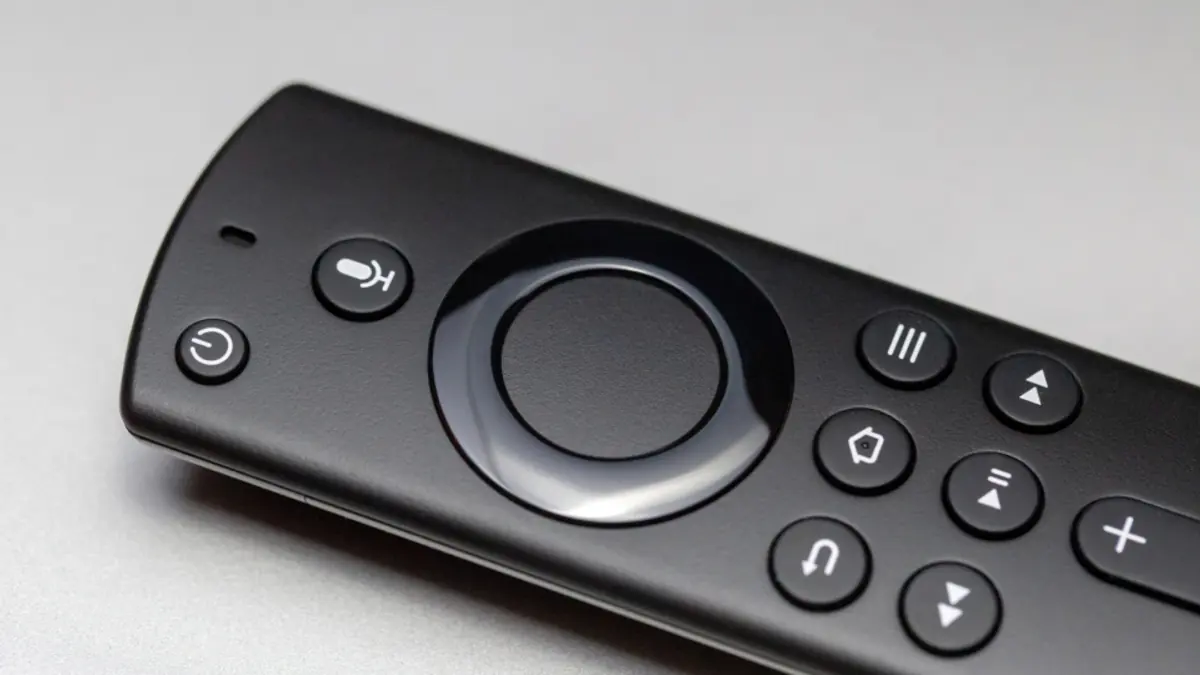
A Fire TV stick is a popular way to add apps to an older television. It is inexpensive and simple to connect, but its modest hardware and remote-only input mean a little preparation pays off. This walkthrough keeps to the Amazon Appstore, the safest place to install from. Looking for IPTV Smarters Pro on Fire TV or Firestick? Go straight to the IPTV Smarters Pro section.
Before you start
- Plug the stick into the TV using the supplied power adapter rather than a TV USB port, which may not deliver enough power.
- Install the system updates your device offers.
- Have your details ready, from a service you are lawfully entitled to use.
Choosing an app
Open Find on the home screen and search for a media player. Which apps appear depends on your country and Fire TV generation. Before installing, read the listing, including its most recent update and the permissions it requests.
Our compatible apps page describes what to look for. If you rely on a TV-style channel guide, give that priority. If you only want to check that a stream works, a simple general-purpose player will do.
Installing the app
- Select the app in the search results.
- Start the download from its page and wait for it to finish.
- Open the app.
Entering your details without frustration
Long addresses are the main obstacle on a remote. A few tricks help:
- If you can pick between a playlist link and a server login, the login is much shorter to type. Our article on M3U and Xtream logins explains the difference.
- The Fire TV remote's voice button can sometimes dictate into search fields, but it is unreliable for addresses, so double-check anything it enters.
- Some apps offer a code or a web page for sending details from your phone. Use this when it comes from the app's official developer.
- Watch for similar characters, such as a capital I and a lower-case l.
First run
After you confirm your details, the app downloads the channel list. The first load is the slowest, so leave it to finish. Then test channels from several categories rather than just one.
Now add a programme guide if your access type needs one. The article on adding EPG data walks through it. Large guide files can tax a stick, so limit the number of days stored where you can.
Getting smoother playback
Help the Wi-Fi
Sticks sit behind the TV, surrounded by metal. According to Amazon's technical specifications, many models support Ethernet through an external adapter: check the spec sheet for your model.
Keep storage free
Fire TV devices have limited storage, and performance can suffer when it runs low. Remove apps you do not use, and clear cached data from the app settings.
Restart periodically
Unplugging the power for a few seconds and plugging it back in restarts the stick. It's a quick cure for sluggishness.
IPTV Smarters Pro on Fire TV
Many searches are about "IPTV Smarters Pro Firestick". We could not check the Amazon Appstore: Amazon's help and store pages did not respond when we checked. The website of the publisher, WHMCS Smarters, lists no separate Fire TV version: its archived copy from August 2026 stated that the Android app is not on Google Play and offered an APK file, with a code for the Downloader app, which is often used on Fire TV.
Installing that file on a Fire TV therefore means installing it outside the store. If you consider this route, first read our article on the IPTV Smarters APK and Downloader codes and download only from the publisher's website. Otherwise, choose a player offered in the Appstore in your region: according to VideoLAN, VLC is available in the Amazon Appstore. Our article on IPTV Smarters Pro for Android TV explains how Fire TV differs from Android TV.
A word on installing from elsewhere
Online tutorials often recommend enabling installation from unknown sources. Apps from unverified websites can include unwanted code and receive no store updates. If an app is not offered in the Appstore in your region, we suggest choosing one that is.
If something goes wrong
If the list will not load, check the details on another device to separate a typing mistake from an account problem. For stuttering, read how to deal with buffering. A short summary of the Fire TV steps is also in our installation guides.
Sources
The official pages behind the facts in this article. Stores and websites change, so each source shows the date we checked it.
- Amazon Developer – Fire TV device specifications · checked on 12 November 2026
- iptvsmarters.com – downloads section · archived copy of 15 August 2026 · checked on 14 November 2026
Keep reading
Basics
IPTV Smarters APK and Downloader codes: official source, risks and alternatives
IPTV Smarters APK and Downloader codes: what the publisher's website offers, why copies elsewhere are risky and which safe alternatives to choose.
3 min read
Setup
IPTV Smarters Pro for Android TV: availability and verified alternatives
IPTV Smarters Pro for Android TV and Google TV: what Google Play shows, how to install an app on your TV and which verified alternatives to choose instead.
3 min read
Setup
IPTV Smarters and Smarters Player on Roku: what you need to know
Smarters Player on Roku: what official sources confirm, why sideloading is meant for developers, and how to choose an IPTV app for your Roku.
3 min read